> For the complete documentation index, see [llms.txt](https://docs-latam.messaging.sinch.com/llms.txt). Markdown versions of documentation pages are available by appending `.md` to page URLs; this page is available as [Markdown](https://docs-latam.messaging.sinch.com/permission/system-user-role.md).
# System User Role
## What is this new feature?
Before we explain about the feature, we need to **understand the problem that we are solving**. When you have to create a chatbot integrated to MM2, you must create an account on MM2 to link this to a chatbot, on Chatlayer. If this person who has created this bot **leaves the company**, this chatbot usually is **desactivate** due to this event.
So, thinking in **avoid this bad experience** happen always that someone leaves the company (and to guarantee more security in our process), we have decided to **create the** **System User Role**. This new feature intend to prevent this issue from happening, become able to **create safe users to use on your chatbots.**
## Activating the System User Role
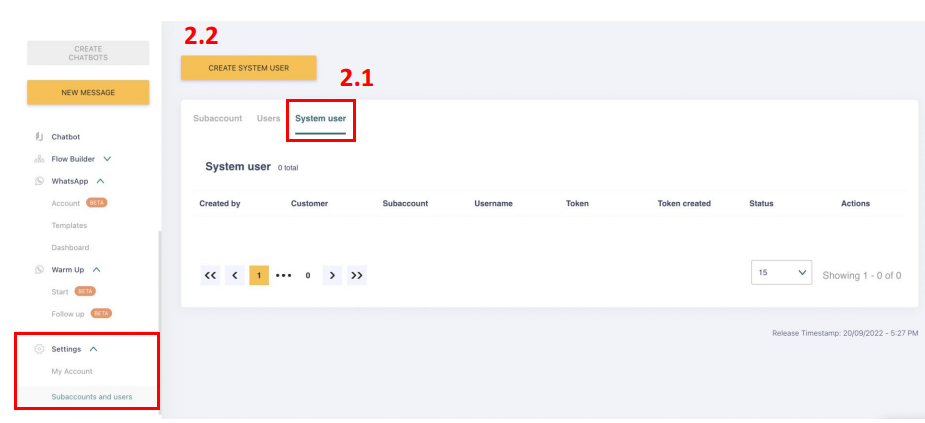
Go to Settings > My Account > Account Settings
**2.1** - You can see the new tab called System User.
{% hint style="danger" %}
Only the customer **Admin** and the **Developer role** can be able to set up this new configuration.
{% endhint %}
**2.2** - Button to "**Create System User**".
**2.3** - Once you click on the button to create a new system user, it will open a pop up where you can select the subaccount + username.
**2.4** - It is important to know that you can only create a system user for each subaccount.
{% hint style="info" %}
The **Username** can be whatever you want.
{% endhint %}
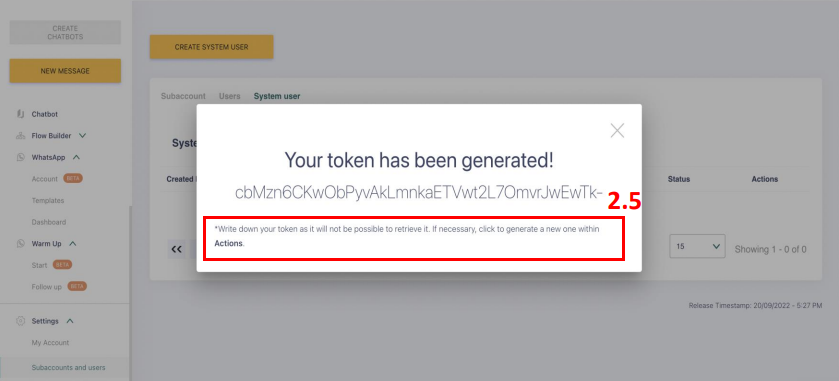
**2.5 -** After you define the subaccount and the username, you will click on **Generate Token**.
It will appear this pop up, so pay attention to take note of this token because it will not be displayed again. In case you forget to take a note, you will have to generate a new token.
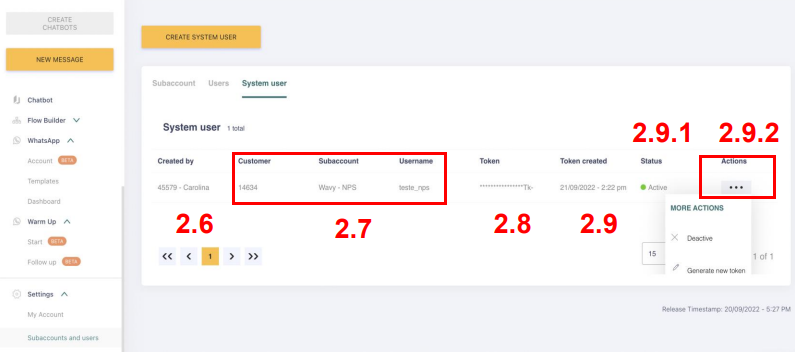
In this screen, you can see all the system users you have created.
**2.6 -** You can see who user has created.
**2.7 -** All the informations that belongs to the system user.
**2.8 -** You will be able to see just the end of the token.
**2.9 -** The date and the time of this creation.
**2.9.1 -** If it is active or inactive.
**2.9.2 -** More Actions (Deactive or Generate a new Token)
## Deactivating the System User Role
Go to Actions > Click on … > Deactivate.
**3.1** Once you click on Actions and choose to deactivate the System User, it will open a pop up to confirm your choice.
**3.2** After doing this, you will see the Status column updated. In case you want to activate it again, just go to Actions.
## Generate a new token
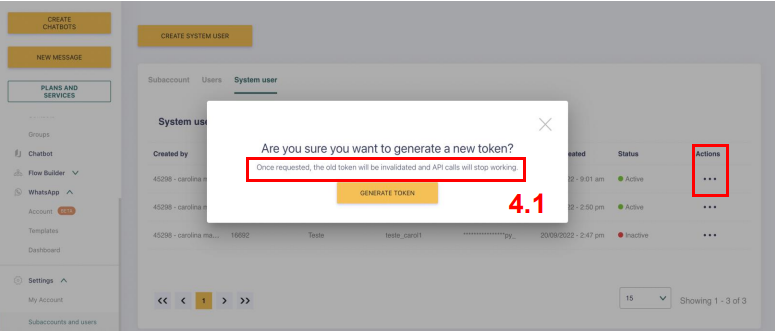
Go to Actions > Click on … > Generate a new token.
**4.1 -** Once you click on Actions and choose to Generate a new token, it will open a pop up to ensure your understanding about the risk of doing this (just in case you have configured in an API).
## Webhook Configuration: prepare to Chatlayer integration
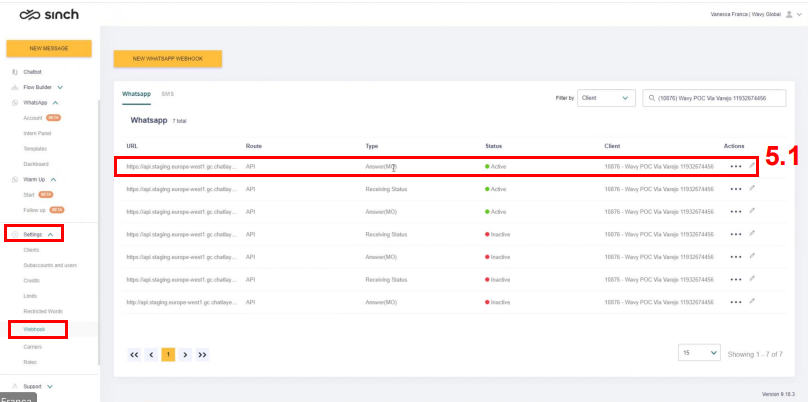
Go to Settings > Webhook.
5.1 This configuration is the same of usual.
The only exception is that if your chatbot is not so active into sending messages and not expecting to receive organic MO (mainly after so much time without any interaction), you will have to configure another Answer (MO) to accept **Subaccount Null**.
## Update Chatlayer with System User
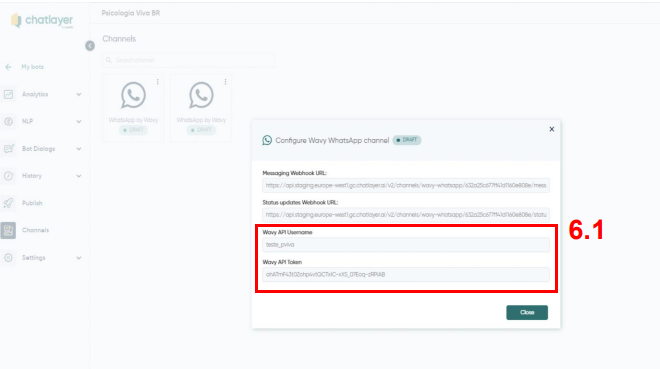
Go to Chatlayer > Configure Wavy WhatsApp Channel
**6.1** This configuration is the same of usual.