> For the complete documentation index, see [llms.txt](https://docs-latam.messaging.sinch.com/llms.txt). Markdown versions of documentation pages are available by appending `.md` to page URLs; this page is available as [Markdown](https://docs-latam.messaging.sinch.com/send-a-message/mm2-new-report-chat-mt-+-mo.md).
# MM2: New Report: Chat (MT + MO)
Report Chat (MT+MO) is the new SMS report from MM2, where we consolidate the information of MT + MO in one single place.
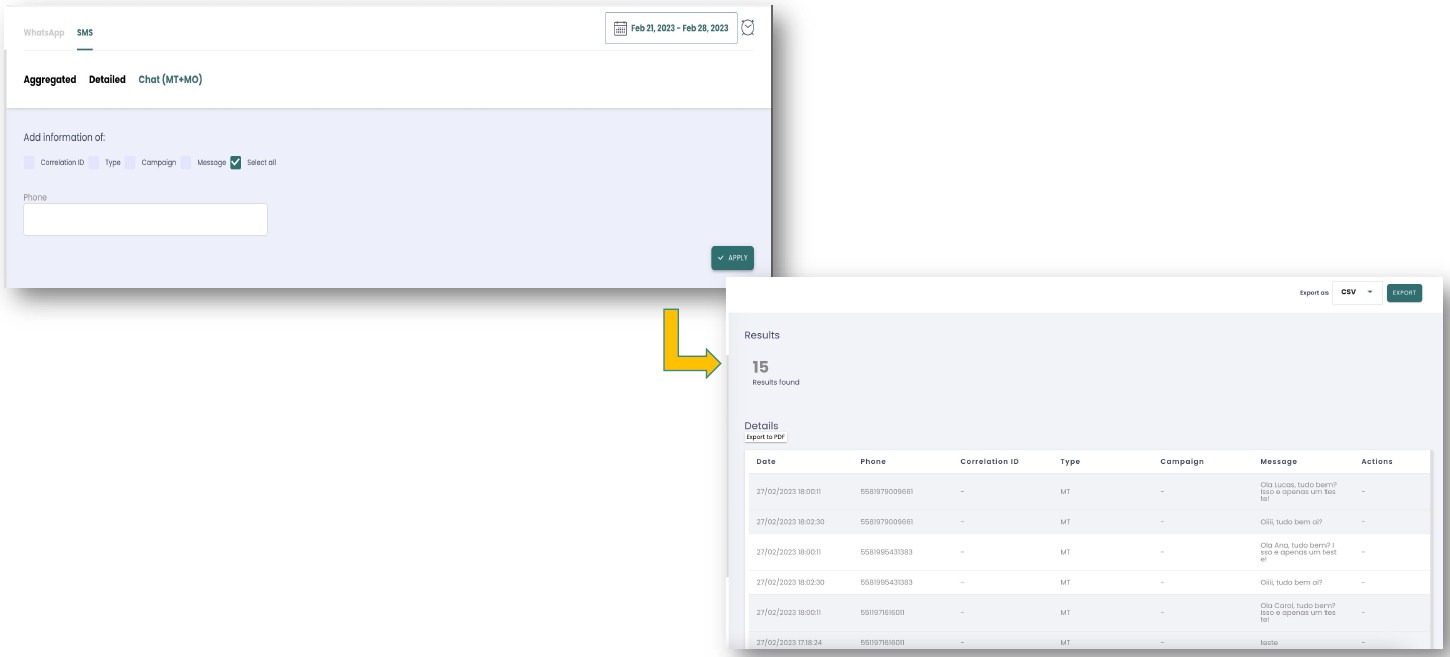
image1
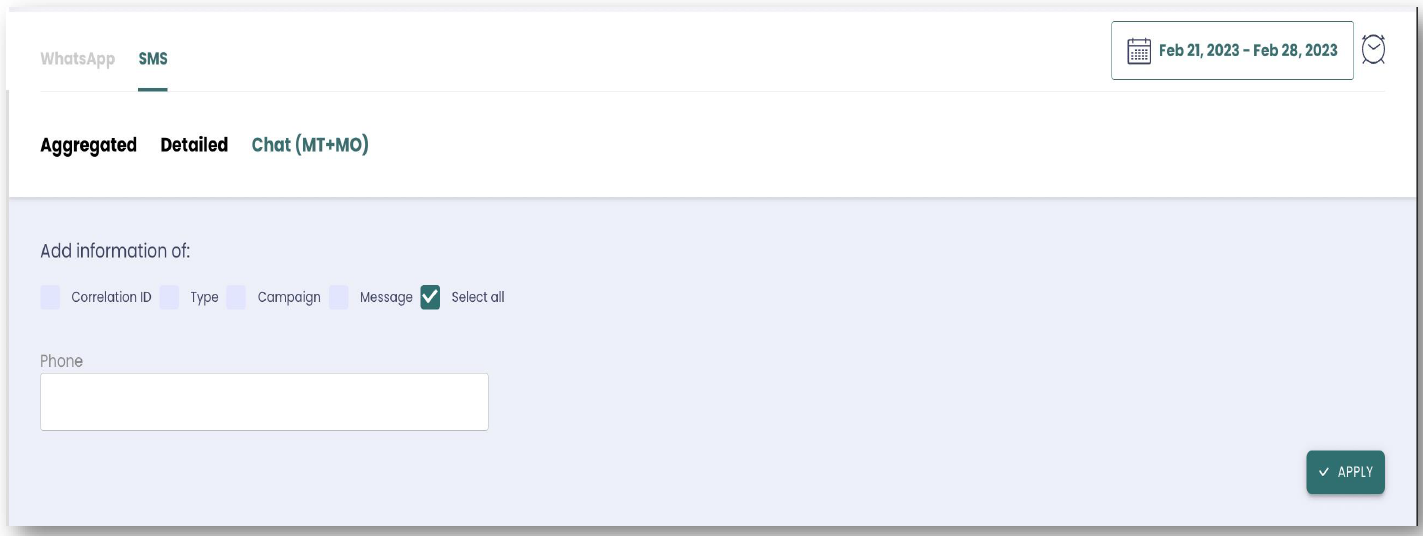
image 2
Report Chat (MT+MO) is the new SMS report from MM2, where we consolidate the information of MT + MO in one single place.
## How is it works?
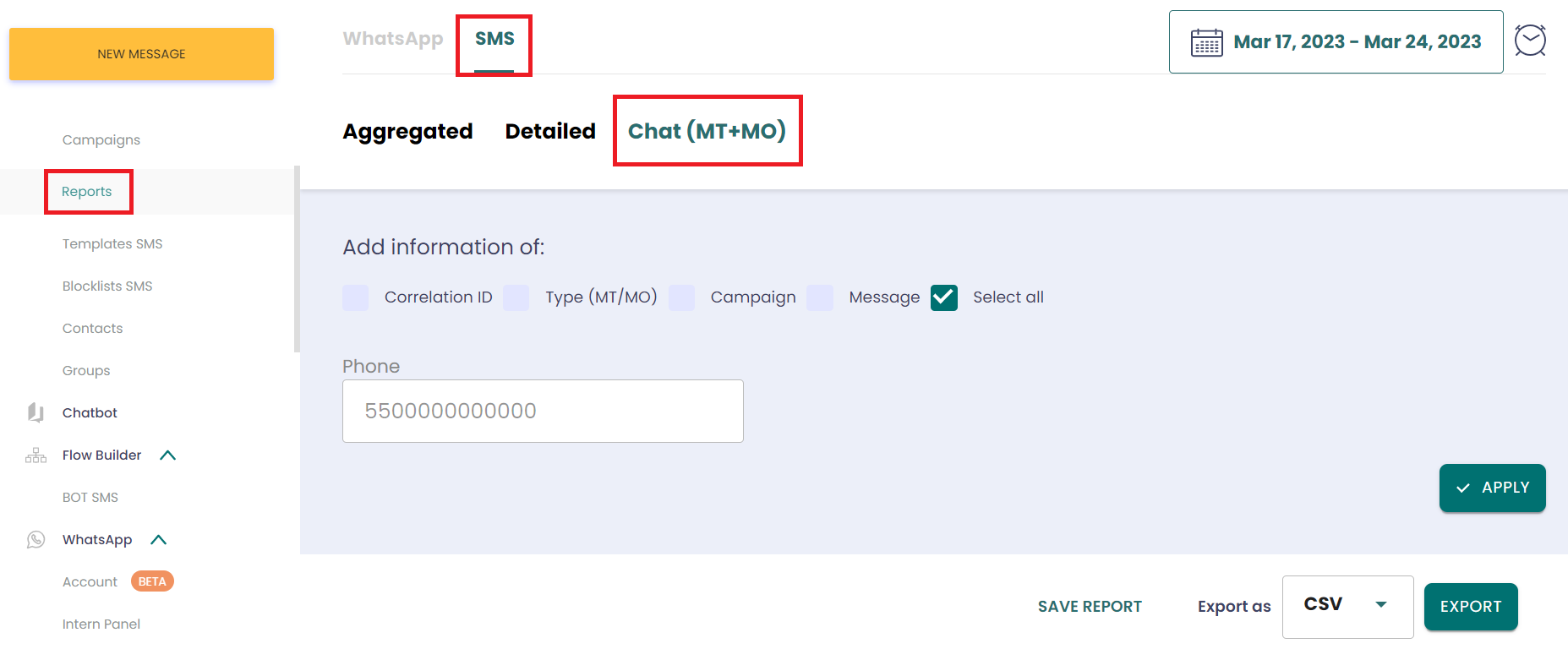
**2.1** The idea of this report is consolidate the message sent (MT) and message received (MO) information in one unique place, in an ordered way. You can use these filters + calendary (to get the period of information that you need) and then, click into APPLY
**2.2** Correlation ID: It is a specific field that can be added to your customer base indicating a registration number or protocol, this data does not appear in your SMS.
**2.3** Type (MT/MO): if it is MT or MO message
**2.4** Campaign: name of the campaign (if it exists)
**2.5** Message: the content of the message
**2.6** Select All: bring all the information
**2.7** Phone: if you want to search some specific phone number (must fill it up with complete number)
**2.8** Calendar: select the period to see your data
2. **Go to side Menu > Reports > SMS > Chat (MT+MO)**
As you can see, you will be able to identify what is MT and what is MO, in an orderly way (starting with the oldest to the newest) Another thing our customers will be able to do is to answer a specific MO. If he choose to do this, he will redirect to Fast SMS. After sending it, he will return on Report screen (first page).
On this page, we bring the phone number (coming from the MO) that the customer decided to answer.